Building an Android alarm that actually rings: what HeyUtho taught me
I helped a friend ship HeyUtho, a math-challenge alarm. The math was easy. Making Android ring on time, every time, wasn't. Here's what I learned.
5 min read
A few days ago I helped my friend Sajib ship HeyUtho, an Android alarm clock you can only switch off by solving three math problems in a row. Get one wrong and you start again.
I thought the math would be the interesting part. It wasn't. Generating 47 + 38 takes one line of Kotlin. Making sure the phone actually rings at 6:30 — after a reboot, with the app swiped away, with the screen locked, on a phone whose battery manager hates you — took most of the work.
If you're building anything time-critical on Android (alarms, reminders, medication apps), here's what I'd tell myself before starting.
1. "Exact" alarms are a permission now
The obvious API is AlarmManager.setExactAndAllowWhileIdle(). It fires at the exact time, even when the phone is in Doze. But since Android 12, you need permission to schedule exact alarms, and the user can take it away.
There are two permissions, and they're easy to mix up:
SCHEDULE_EXACT_ALARM— the user can grant or revoke it in Settings → Apps → Special app access → Alarms & reminders. On Android 14 and up, it's denied by default for most newly installed apps.USE_EXACT_ALARM(API 33+) — granted automatically, but Google Play only allows it for apps whose core feature is an alarm clock or calendar. An alarm app qualifies. A to-do app usually doesn't.
Whichever one you use, always check before you schedule:
val alarmManager = context.getSystemService(AlarmManager::class.java)

if (Build.VERSION.SDK_INT >= Build.VERSION_CODES.S &&
    !alarmManager.canScheduleExactAlarms()
) {
    // Send the user to the "Alarms & reminders" screen for this app
    context.startActivity(
        Intent(Settings.ACTION_REQUEST_SCHEDULE_EXACT_ALARM)
            .setData(Uri.parse("package:${context.packageName}"))
    )
    return
}

alarmManager.setExactAndAllowWhileIdle(
    AlarmManager.RTC_WAKEUP,
    triggerAtMillis,
    pendingIntent,
)
One detail that's easy to miss: if the user revokes the permission, Android cancels your future exact alarms. Nothing tells the user. So when the app comes back to the foreground, check again and reschedule.
It's also worth knowing about setAlarmClock(). It's built for user-facing alarms, the system shows an alarm icon in the status bar, and it gets the strongest guarantees against Doze. If you're making a real alarm clock, give it a serious look.
2. A reboot wipes every alarm you scheduled
AlarmManager keeps alarms in memory. When the phone restarts, they're gone.
The fix is boring but non-negotiable: store alarms in your own database (we used Room), listen for BOOT_COMPLETED, and schedule everything again.
class AlarmReceiver : BroadcastReceiver() {
    override fun onReceive(context: Context, intent: Intent) {
        if (intent.action == Intent.ACTION_BOOT_COMPLETED) {
            val pending = goAsync()
            CoroutineScope(Dispatchers.IO).launch {
                try {
                    AlarmRepository(context).enabledAlarms()
                        .forEach { AlarmScheduler.schedule(context, it) }
                } finally {
                    pending.finish()
                }
            }
        }
        // …otherwise, this is an alarm firing: start the ringing service
    }
}
Don't forget RECEIVE_BOOT_COMPLETED in the manifest. Without it, the first system update quietly turns your alarm app into a very nice clock.
3. The sound must not live in your UI
If the alarm sound plays from your activity, the fix for a sleepy user is easy: swipe the app away from recents, and the alarm goes silent. For a "you can't escape this" alarm, that's the one bug that matters.
So the ringing moved into a foreground service, and we gave it its own process:
<service
    android:name=".alarm.AlarmRingingService"
    android:process=":alarm_service"
    android:foregroundServiceType="mediaPlayback"
    android:exported="false" />
Two Android 14 details here:
- Every foreground service now needs a
foregroundServiceType, plus the matching permission — in our caseFOREGROUND_SERVICE_MEDIA_PLAYBACK. - Starting a foreground service from the background is normally blocked since Android 12, but a firing exact alarm is one of the allowed exceptions. That's why the receiver can start the service directly.
Running in a separate process means one more thing: the UI and the service don't share memory. If the activity needs to know "is an alarm ringing right now?", it has to ask through something persistent, not a static variable. A static flag set in one process simply doesn't exist in the other.
4. Showing up on the lock screen
An alarm that only rings inside a notification isn't much of an alarm. You want the challenge screen on top of everything, with the display on.
That takes a full-screen intent on the notification, and two flags on the activity:
override fun onCreate(savedInstanceState: Bundle?) {
    super.onCreate(savedInstanceState)
    if (Build.VERSION.SDK_INT >= Build.VERSION_CODES.O_MR1) {
        setShowWhenLocked(true)
        setTurnScreenOn(true)
    }
    // …
}
Since Android 14, USE_FULL_SCREEN_INTENT is only granted by default to calling and alarm apps on Google Play. You can check with NotificationManager.canUseFullScreenIntent(), and if it returns false, fall back to a high-priority notification rather than failing silently.
5. The phone maker can still kill you
You can do all of the above correctly and still lose. Some manufacturers ship aggressive battery managers that stop background work no matter what the Android docs promise. Xiaomi, Oppo, Vivo, and Samsung come up again and again.
There's no code fix for this. What helps:
- Tell users plainly to set your app's battery usage to Unrestricted. We put it right in the install guide.
- Point them at dontkillmyapp.com, which has step-by-step instructions per brand.
- Test on a real budget phone, not just a Pixel emulator.
6. Small UX details matter more at 6 a.m.
Some lessons that had nothing to do with APIs:
- Make the keypad huge. Nobody types well half-asleep. We built our own numeric keypad with big touch targets and haptic feedback.
- Keep the ringing screen dark, even in light mode. A white screen in a dark bedroom is cruel.
- Block the escape routes. The back button and volume keys do nothing while it rings. A wrong answer resets the streak, so guessing doesn't work.
- Test the boring controls. Our scroll-wheel time picker was ignoring most taps — the kind of bug no screenshot will ever show you.
How to test without waiting until morning
You don't have to sit up until 6:30 to know if your alarm works. These two adb commands do most of the work:
# See every alarm your app has scheduled, and when it will fire
adb shell dumpsys alarm | grep -A 3 your.package.name

# Force the device into Doze, then check that your alarm still fires
adb shell dumpsys deviceidle force-idle
Then reboot the phone, swipe the app away, lock the screen, and wait. If it rings through all of that, you're close.
The takeaway
Most of an alarm app is not the alarm. It's the dozen ways Android, Google Play, and phone makers try to save battery, and your job is to work with each of them instead of against them.
HeyUtho is free and open source. If you want to see how the pieces fit together, the code is on GitHub, and you can read about the project here. And if you're the kind of person who hits snooze five times, maybe give it a try.
Keep reading
All posts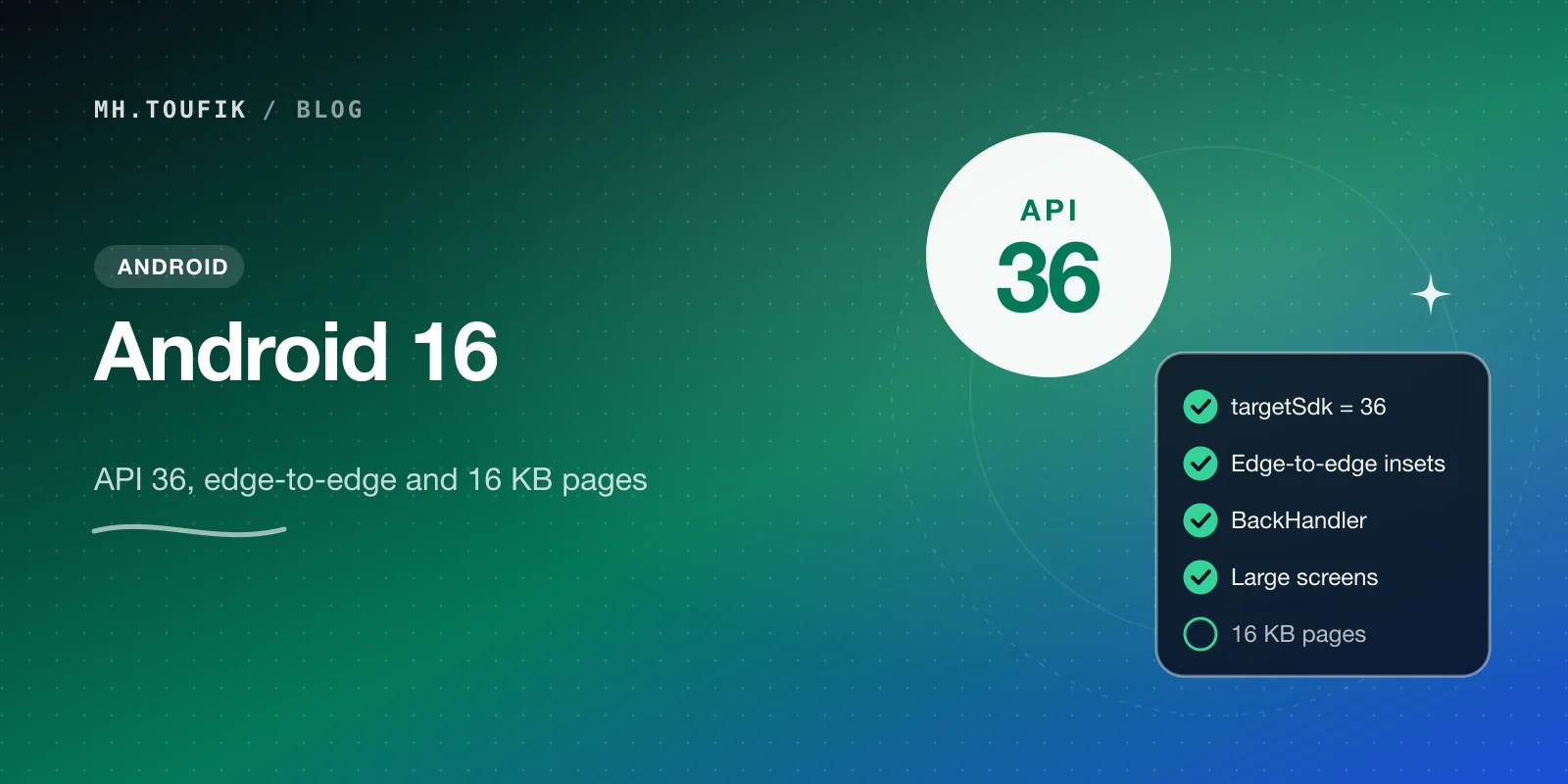
Android 16 and API level 36: what the Google Play deadline changes
New Play apps and updates must now target Android 16 (API 36), and 16 KB page sizes come next. Here's what changes and a checklist to get your app ready.
4 min read
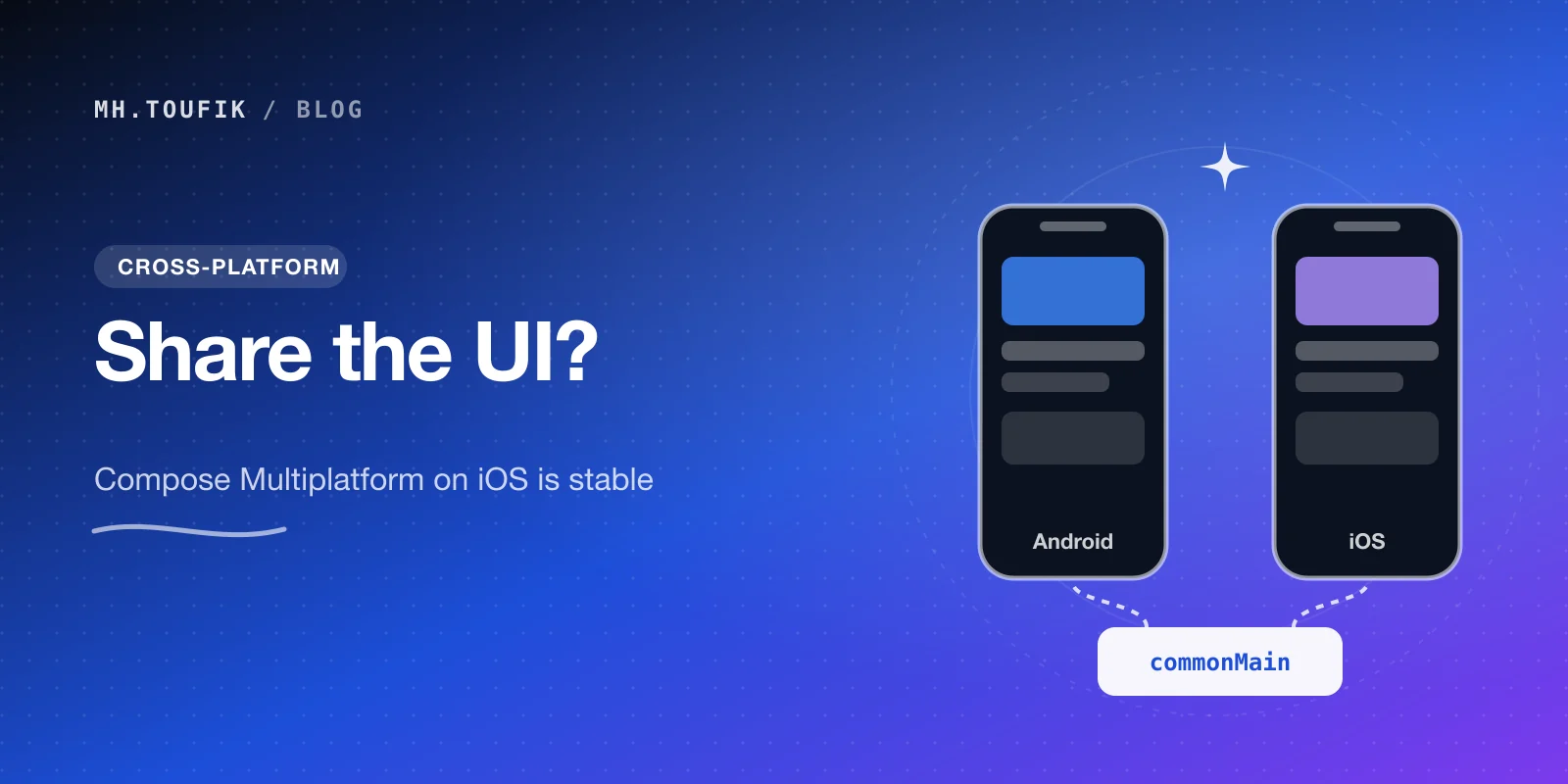
Compose Multiplatform for iOS is stable. Should you share your UI now?
Compose Multiplatform for iOS has been stable since May 2025. Here's when sharing UI between Android and iOS pays off, and when native SwiftUI still wins.
4 min read
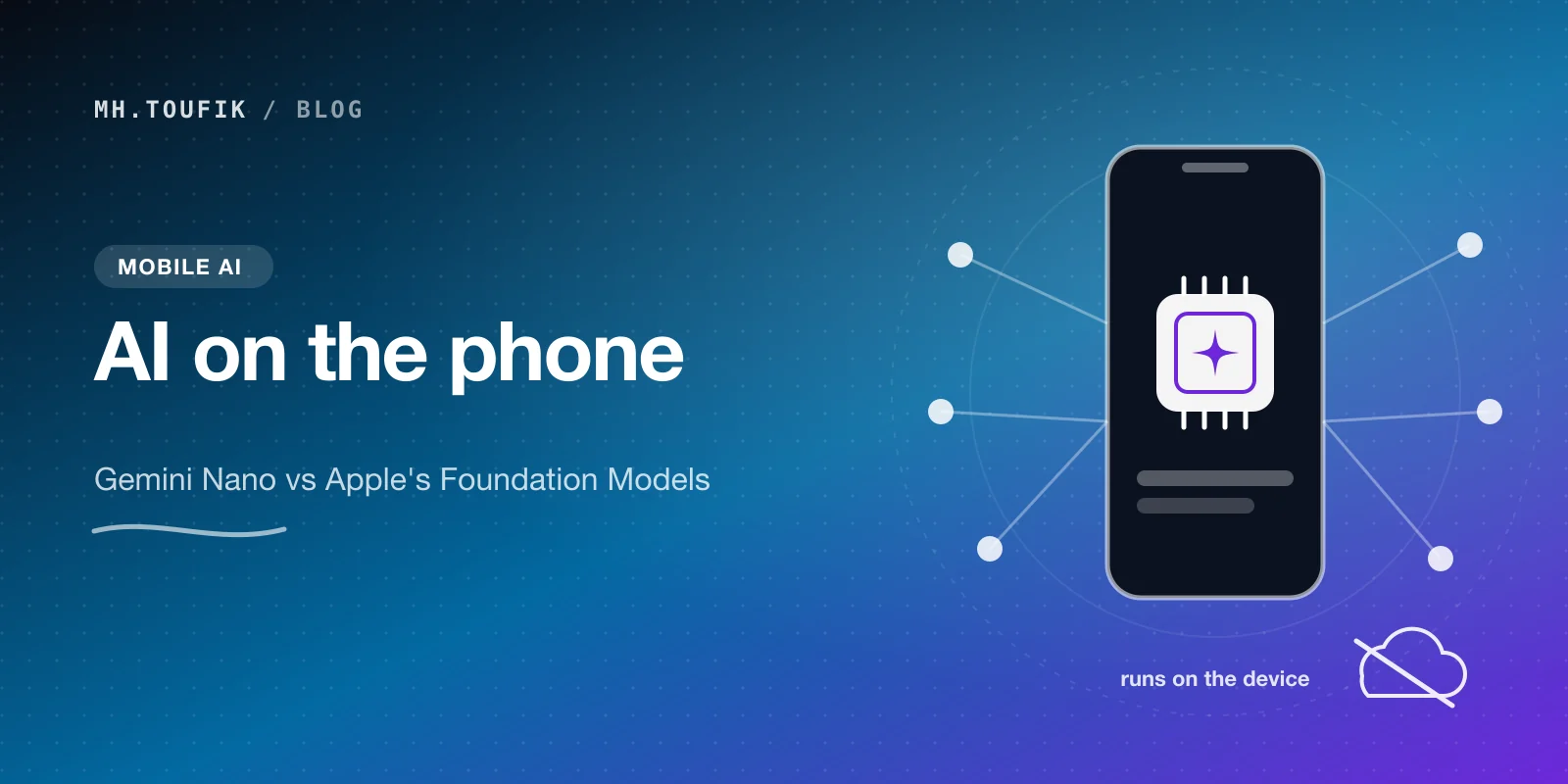
On-device AI in mobile apps: Gemini Nano vs Apple's Foundation Models
Android and iOS both ship a language model on the phone now. What Gemini Nano and Apple's Foundation Models can do, where they fall short, and how to start.
4 min read
Comments
No comments yet — start the conversation.